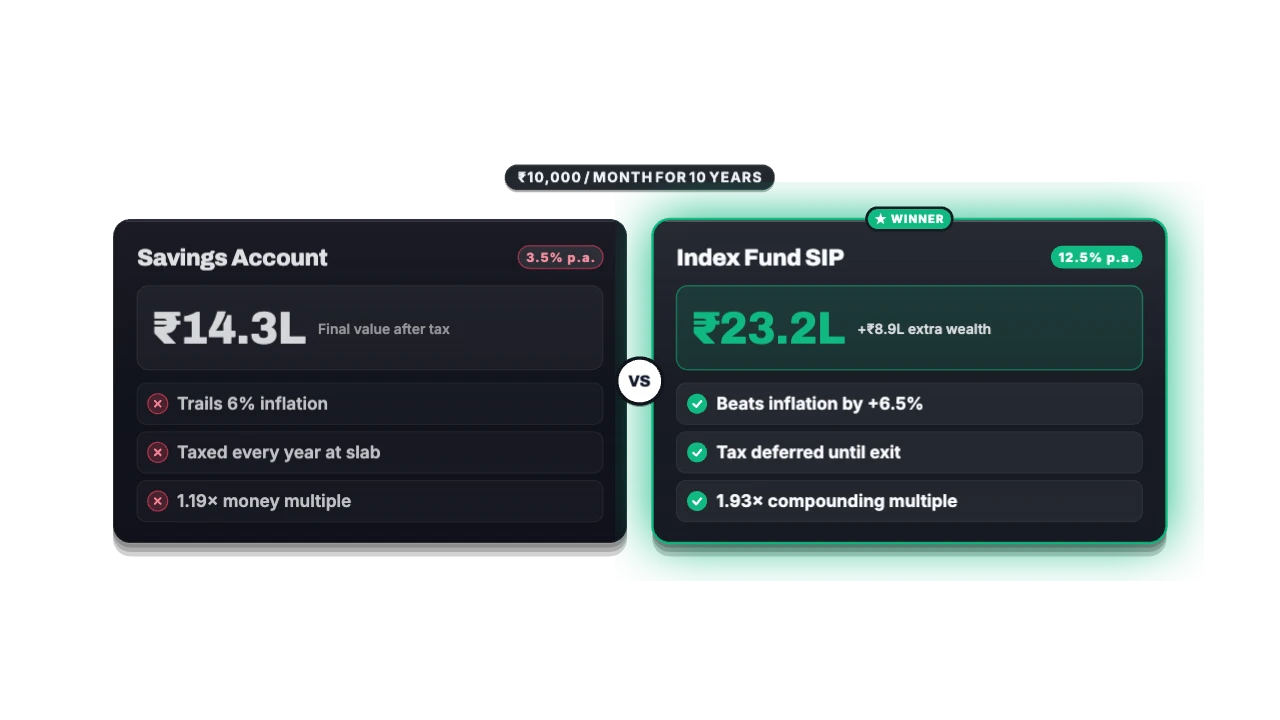
For education and explainer videos
Comparison Card (A vs B) for DaVinci Resolve, as a green screen
Pit two choices head-to-head with hero outcomes, structured pros and cons, a central VS medallion, and a winner payoff. Made for lessons, frameworks, key facts and quiz answers. Export it as a green-screen MP4 and it drops straight into DaVinci Resolve.
PRO16:9, 9:16, 1:1 · up to 60 fps
Also for DaVinci Resolve: transparent MOV, PNG sequence, transparent WebM
Import guide · green screen
Add it in DaVinci Resolve
- Drop the MP4 on V2, open the Fusion or Color page.
- Add a 3D Keyer (or Delta Keyer) and pick the green.
- Clean up the matte with Matte Finesse if needed.
FAQ
How do I add the Comparison Card (A vs B) in DaVinci Resolve?
Drop the MP4 on V2, open the Fusion or Color page. Add a 3D Keyer (or Delta Keyer) and pick the green. Clean up the matte with Matte Finesse if needed.
Why green screen for DaVinci Resolve?
Key it out. VN, InShot, CapCut mobile, Edits. It's the format DaVinci Resolve reads most reliably.
Can I change the numbers and words for my education video?
Yes. Every word, number, colour and the motion are editable in the browser. It's made for lessons, frameworks, key facts and quiz answers.
Is it free?
Previews and styles are free to try. Customising and exporting are on Pro and up, with a 3-day free trial.