For education and explainer videos
Budget & Portfolio Split for Final Cut Pro, as a transparent MOV
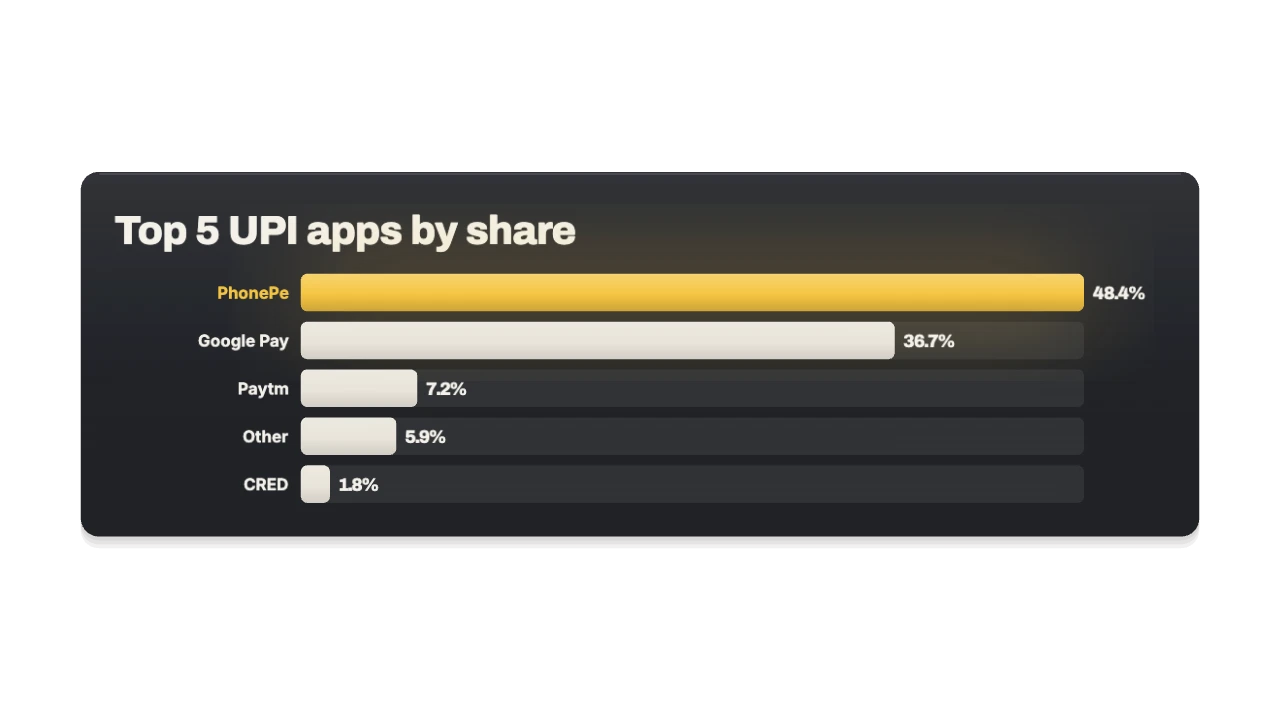
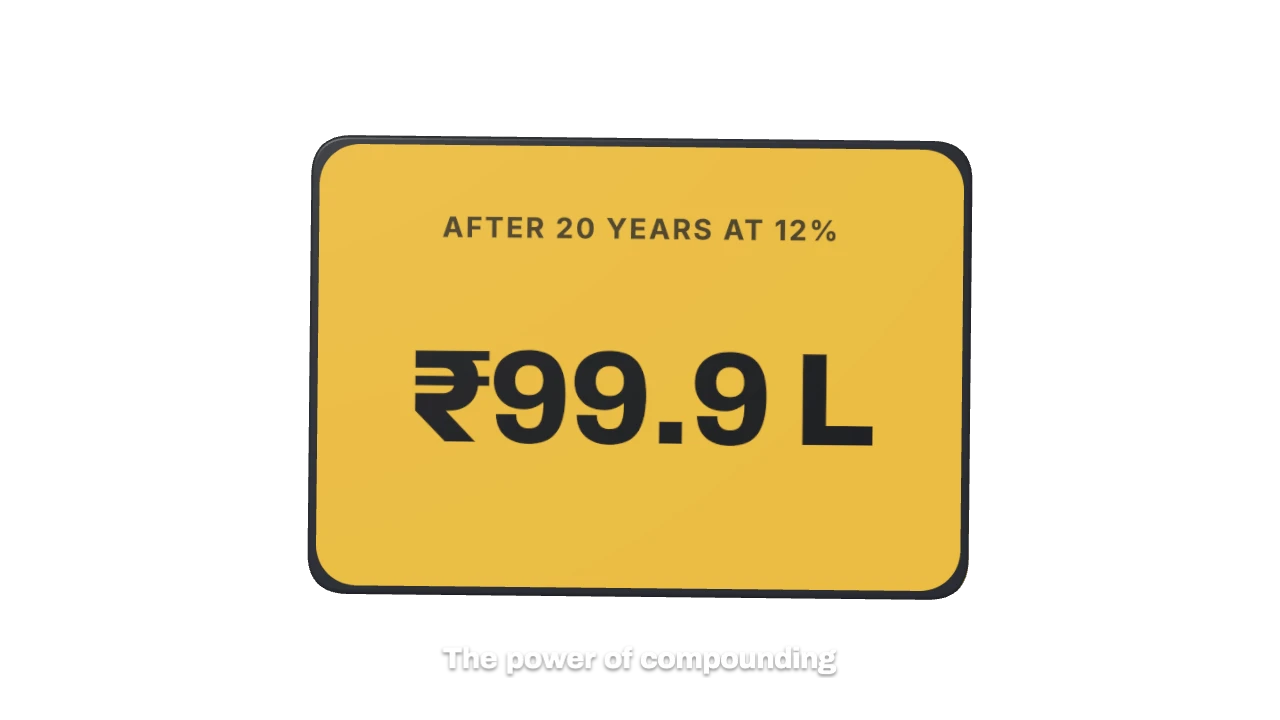
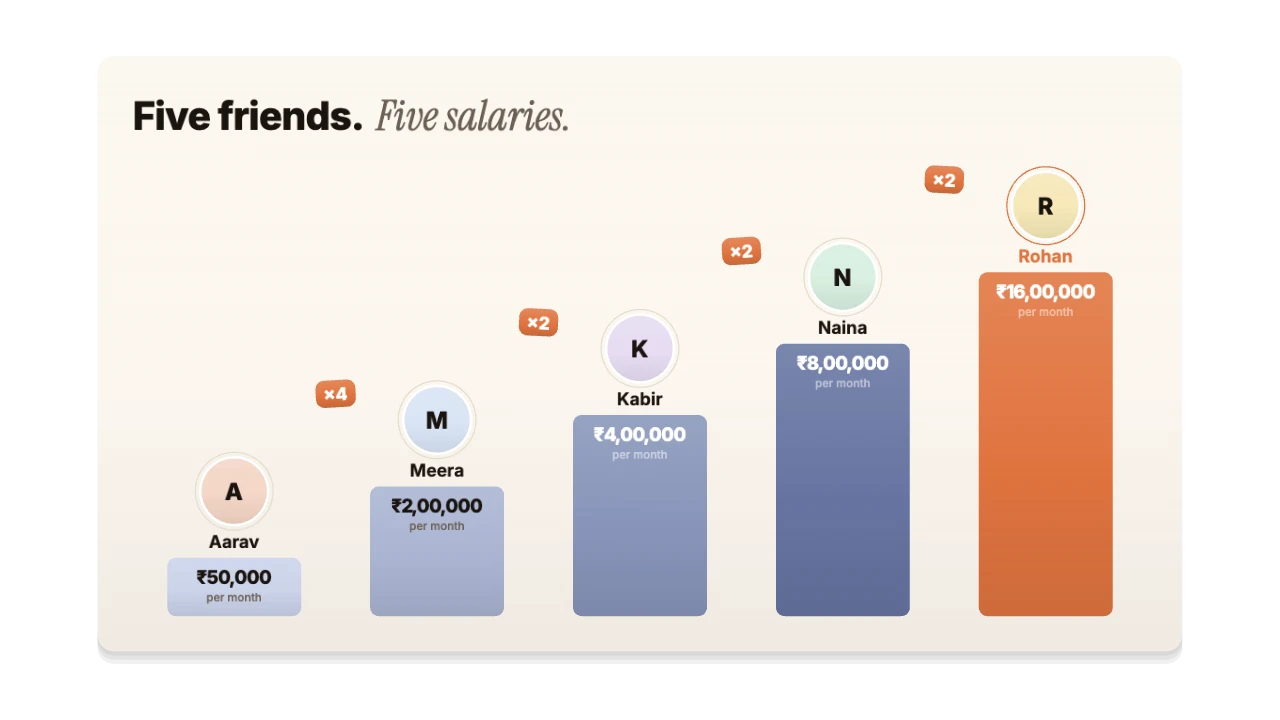
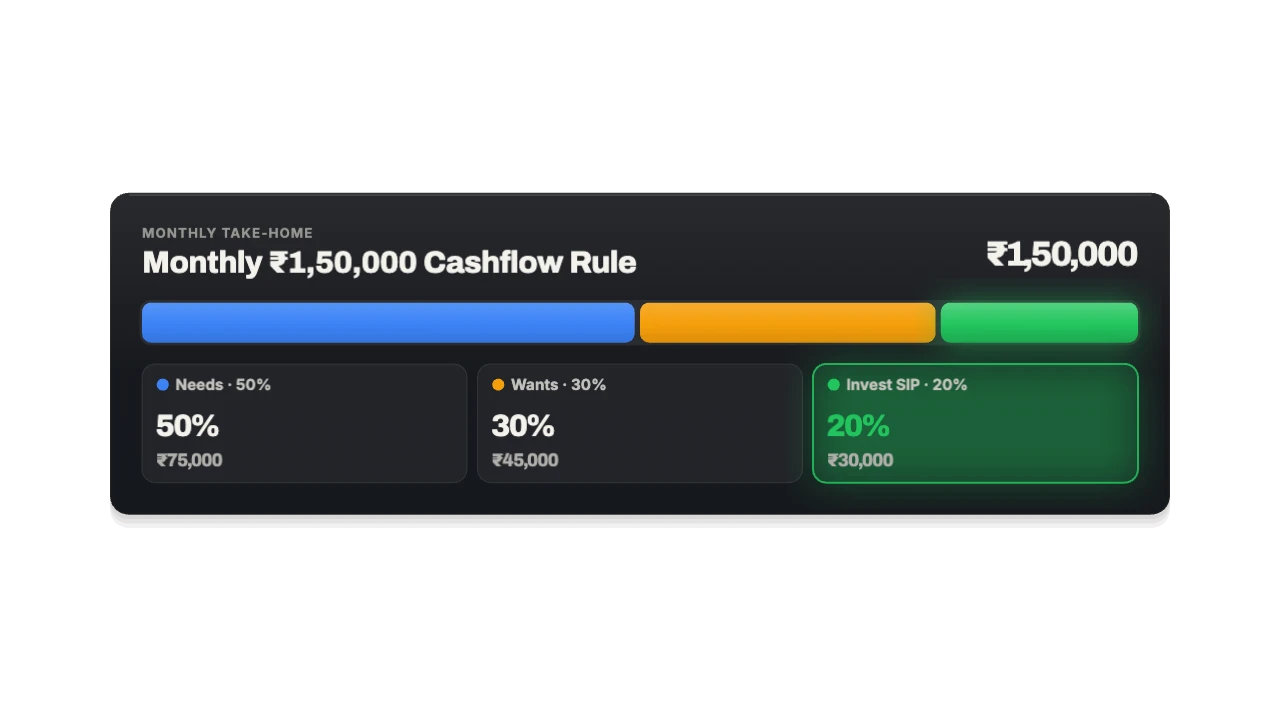
A proportional allocation bar and bucket breakdown that counts every rupee or dollar. Budgets, 50/30/20, portfolios and P&L. Made for lessons, frameworks, key facts and quiz answers. Export it as a transparent ProRes 4444 MOV and it drops straight into Final Cut Pro.
PRO16:9, 9:16, 1:1 · up to 60 fps
Also for Final Cut Pro: PNG sequence, green screen
Import guide · transparent MOV
Add it in Final Cut Pro
- Import the .mov and connect it above your primary storyline.
- The alpha is kept automatically.
- Use Transform to place it.
FAQ
How do I add the Budget & Portfolio Split in Final Cut Pro?
Import the .mov and connect it above your primary storyline. The alpha is kept automatically. Use Transform to place it.
Why transparent MOV for Final Cut Pro?
Alpha. Best for Premiere, DaVinci, Final Cut. It's the format Final Cut Pro reads most reliably.
Can I change the numbers and words for my education video?
Yes. Every word, number, colour and the motion are editable in the browser. It's made for lessons, frameworks, key facts and quiz answers.
Is it free?
Previews and styles are free to try. Customising and exporting are on Pro and up, with a 3-day free trial.