For education and explainer videos
Image Annotate for Premiere Pro, as a transparent MOV
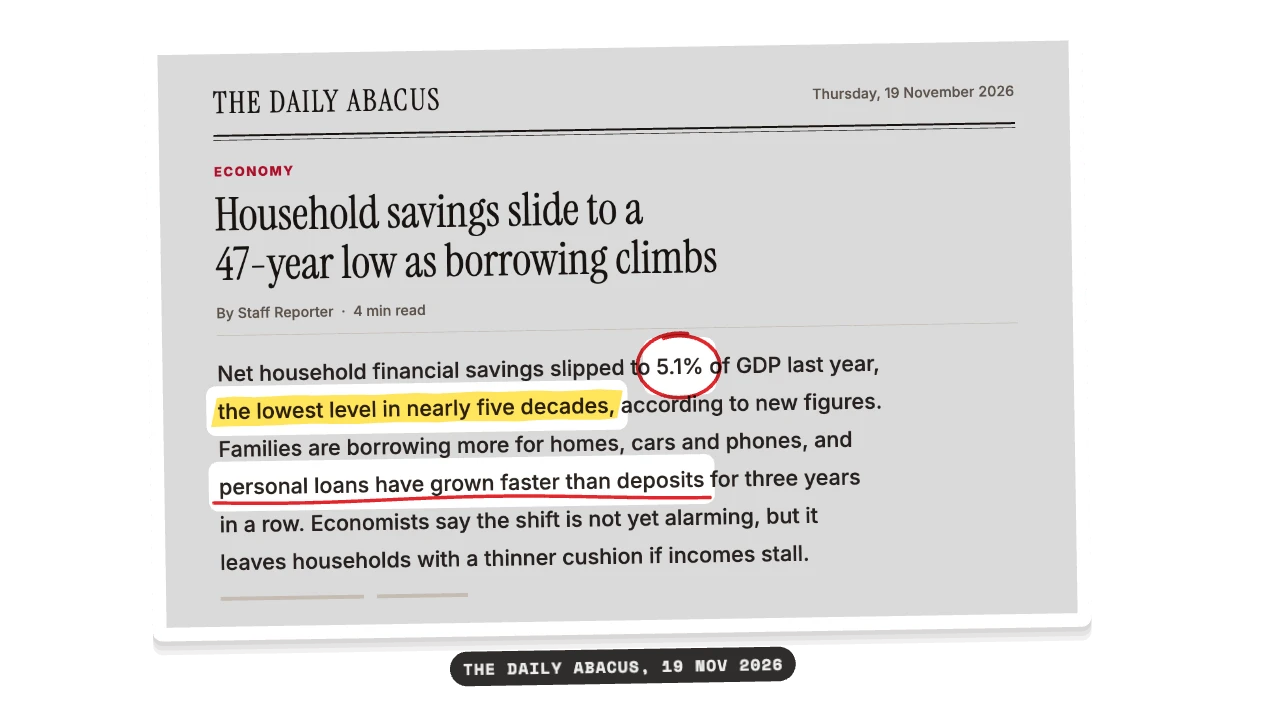
Your screenshot with highlighter, pen marks and zooms landing on what matters. News, posts and charts. Cite your source on screen. Made for lessons, frameworks, key facts and quiz answers. Export it as a transparent ProRes 4444 MOV and it drops straight into Premiere Pro.
CREATOR16:9, 9:16, 1:1 · up to 60 fps
Also for Premiere Pro: PNG sequence, green screen
Import guide · transparent MOV
Add it in Premiere Pro
- Import the .mov (File → Import, or drag it into the Project panel).
- Drop it on V2, above your footage. The alpha comes through automatically.
- Scale and position it in Effect Controls if needed.
FAQ
How do I add the Image Annotate in Premiere Pro?
Import the .mov (File → Import, or drag it into the Project panel). Drop it on V2, above your footage. The alpha comes through automatically. Scale and position it in Effect Controls if needed.
Why transparent MOV for Premiere Pro?
Alpha. Best for Premiere, DaVinci, Final Cut. It's the format Premiere Pro reads most reliably.
Can I change the numbers and words for my education video?
Yes. Every word, number, colour and the motion are editable in the browser. It's made for lessons, frameworks, key facts and quiz answers.
Is it free?
Previews and styles are free to try. Customising and exporting are on Creator and up, with a 3-day free trial.