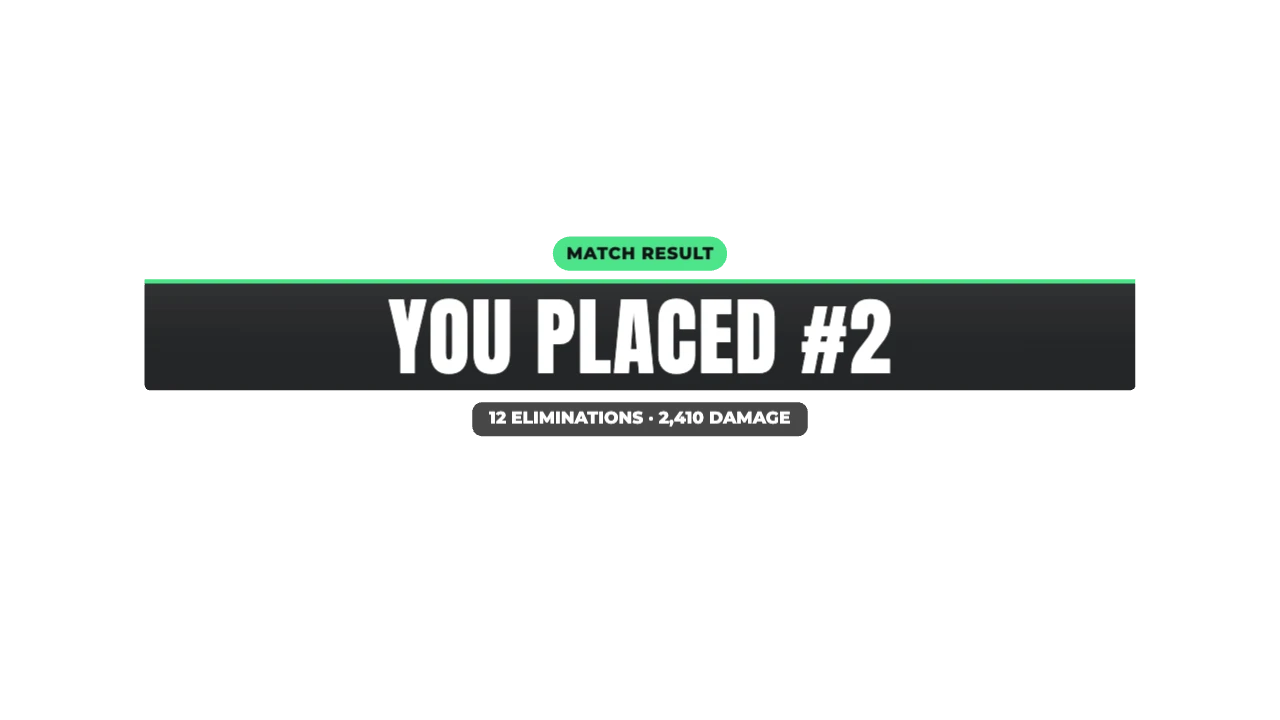
Result Banner
For match results and reveals
VICTORY, YOU PLACED #2, ELIMINATED: a band that slams in with sparks and a light sweep.
CREATORWorks in every editor · 16:9, 9:16, 1:1
Downloads
Import guide
How to use it in CapCut
- Add the clipTap Overlay → Add overlay and pick the downloaded MP4.
- Remove the greenTap Remove BG → Chroma key and pick the green.
- Tune itSet Intensity to about 35 and Shadow to 0 for clean edges.
- Place and timeDrag it into position and trim it to your beat.
Full CapCut guide, with the black-background fix →
Using another editor? See the import guides for Premiere Pro, DaVinci Resolve, Final Cut Pro, CapCut and 6 more.
Specs
- Duration
- 3 s (adjustable)
- Ratios
- 16:9, 9:16, 1:1 · auto-fits each
- Resolution
- Up to 2K at 60 fps
- Plan
- Creator and up
- Languages
- English, Hindi, Japanese, Spanish
- Styles
- Broadcast, Gold win, Knock-out, Minimal
FAQ
How do I use the Result Banner in CapCut, VN or InShot?
Export the green-screen MP4, add it as an overlay, then use Chroma key to remove the green. Phone editors can’t always read transparent files, so green screen is the reliable route.
Does the Result Banner work in Premiere Pro, DaVinci Resolve and Final Cut?
Yes. Export ProRes 4444 (.mov) or a PNG sequence and drop it above your footage. The background is already transparent.
Can I type in Hindi or Japanese?
Yes. Devanagari, Japanese and accented Latin work in every text field, and the layout resizes to fit.
Is it free?
Watching the preview and trying styles is free. Customising and exporting it is on the Creator plan and up, with a 3-day free trial.